A touchscreen monitor is a display that also works as an input device. It shows a picture from a computer, then sends touch information back to that computer when you tap or drag. The picture can work while touch does not. That is the first distinction to remember when connecting one.
An external touchscreen monitor usually does not run your application. The host computer does. An all-in-one touch computer puts the host behind the screen. The front can look nearly identical, but the two products change what you need to install, maintain, and replace.
Key Takeaways
- A touchscreen monitor needs a path for video and a path for touch data. Some setups carry both over a single supported USB-C connection.
- The touch sensor detects a contact, and a controller reports its position. The host and application decide what that input does.
- A touch monitor, a bare touch panel, and a touch computer are different purchases. Check which parts and connections the product includes.
- Verify touch in the actual application, especially if the host drives more than one display or the user needs gestures, gloves, or a pen.
What a touchscreen monitor is
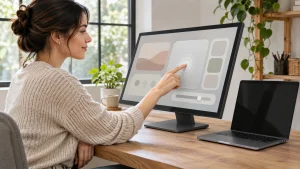
Think of a touchscreen monitor as a screen and an input surface in the same enclosure. With a regular monitor, you would use a mouse or another device to select what is on the screen. With a touchscreen monitor, you can make that selection by touching the image itself. Whether a tap opens a menu, places a cursor, or does nothing depends on the software receiving it.
An external touch monitor connects to a separate computer, player, or other compatible host. A touch computer includes its own processor and operating system. A touch panel may mean just the sensor or an assembly that needs a controller, display, and enclosure. Ask what is included when an item is listed as a panel, especially for an open-frame build.
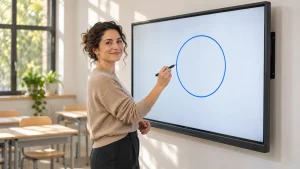
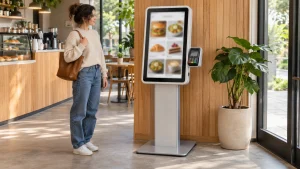
For example, a self-service kiosk can contain a touch monitor and a separate computer behind its enclosure. The customer sees one unit, but the system owner can decide whether the computer and monitor need independent replacement. In a meeting room, a teaching or conference display may instead run a whiteboard app on the device. Neither appearance tells you where the intended application runs.
How a touch becomes an input
The touch sensor detects a change at or near the surface. A touch controller turns that signal into position data and sends it to the host. The host maps the reported contact to the display, and the application uses it. A tap on an on-screen button follows that same chain whether the button advances a slide or confirms a kiosk selection.
The sensor technology determines how the surface detects a touch. EIZO's touch panel overview and ViewSonic's guide to touch panel types describe several approaches:
- Resistive: Pressure brings conductive layers together. The controller uses the resulting electrical reading to locate the contact. It does not rely on the user's finger being conductive.
- Projected capacitive, or PCAP: A sensor pattern detects changes in capacitance near the surface. A finger can register with a light touch, but the accepted glove, pen, or other input depends on the design.
- Infrared: Emitters and receivers around the screen form a grid. An object breaks beams across the surface, and the system uses those interruptions to locate it.
The sensor type does not settle every input question. A pen that moves a pointer may not produce variable-width strokes in your drawing app. Similarly, a monitor can report more than one contact without a given application using pinch-to-zoom. Ask for the behavior you need, not just the advertised touch-point count.
Connect video and touch separately when required
With a separate HDMI or DisplayPort video connection, check the monitor manual for the touch-data cable. A picture alone does not confirm the return path. Elo's connection guide treats power, video, and touch as separate functions. Its older cable examples are useful for the principle, not a list of ports on every monitor today.
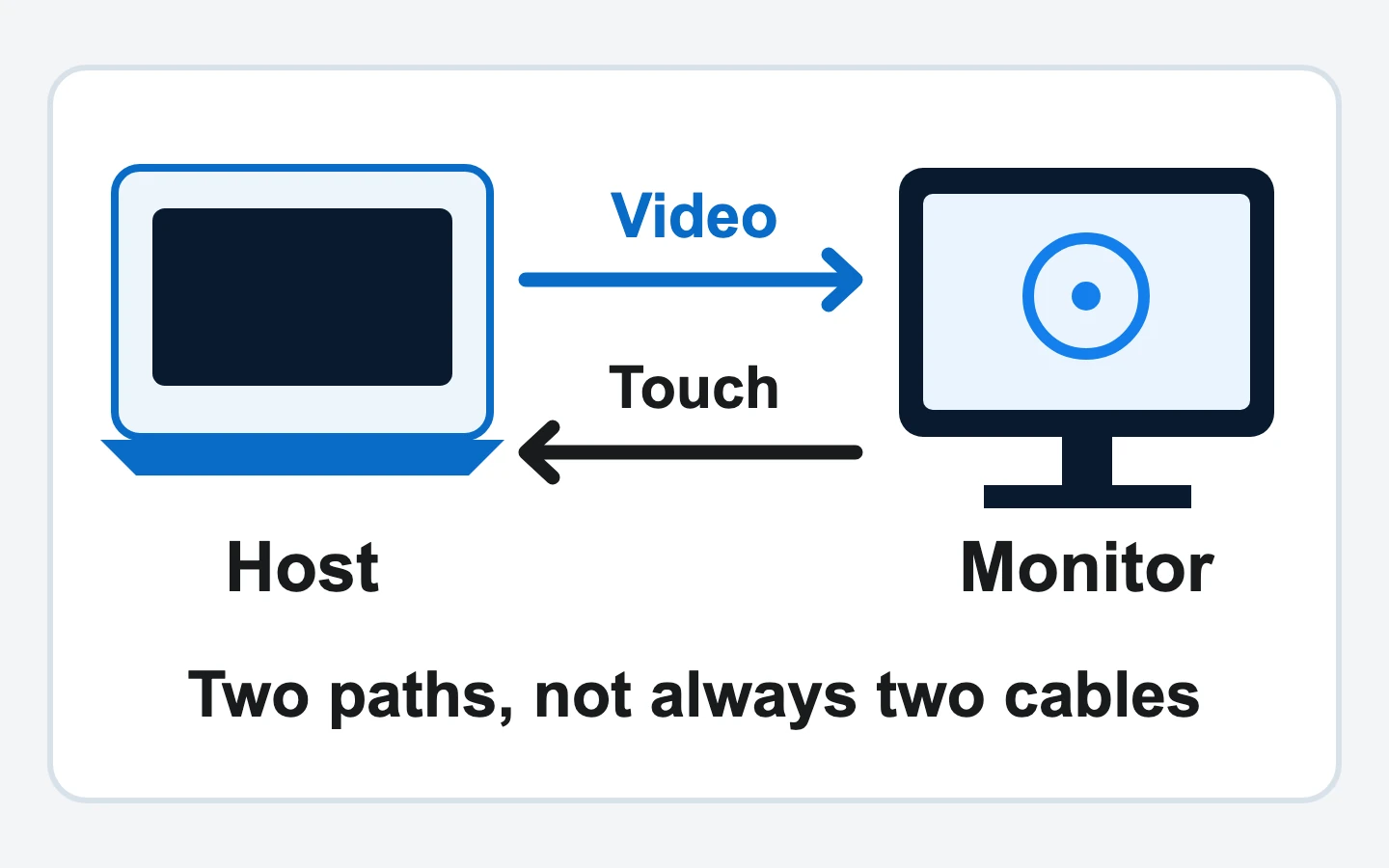
The Dell P2424HT user guide provides a model-specific example. It describes a compatible USB-C-to-USB-C setup using the monitor's upstream port for video and data. If you use HDMI or DisplayPort for video on that model, the guide calls for a separate USB data connection to the upstream port. A downstream port meant for peripherals does not substitute for the connection back to the computer.
A USB-C connector tells you the plug shape, not what a particular port and cable carry. For a one-cable setup, confirm the host port's video and USB data support, the monitor input's corresponding capabilities, and the cable specified for those functions. Check power separately, including whether the display needs its own power supply and whether laptop charging is supported. Do not assume that a cable which charges a phone can also deliver a monitor picture and touch data.
Pick a form factor and check the real workflow
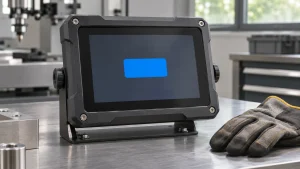
Choose the form factor around the way people will use the screen. A desktop user may need an adjustable stand that stays still during taps. An embedded kiosk needs the correct cutout and service access. A machine operator may need a panel that responds to a specified work glove or remains legible under site lighting. Those are decisions about the whole installation, not just the sensing technology.
Elo's touch monitor range and ADLINK's industrial touch monitors illustrate different mount and enclosure approaches. Compare the actual dimensions, mounting method, host interface, and environmental specification. If you are choosing a commercial touchscreen display, write down who touches it, what they use to touch it, and where the host will sit before comparing screen sizes.
Run a short acceptance check with the intended host and application:
- Picture: Confirm the intended input, orientation, and screen layout. Use the actual content, not only a test wallpaper.
- Touch: Select a control, drag something, and try targets near the corners. If the picture works but touch does not, check the upstream data connection before replacing the monitor.
- Mapping: With multiple displays or a rotated screen, confirm touch acts on the screen under your finger. Follow the host and monitor documentation for display association or calibration if needed.
- Task: Repeat the real action, such as checking in, entering a number, or moving a drawing object. Test required gloves, stylus input, or gestures on the actual configuration rather than inferring support.
- Recovery: Reconnect or restart in the approved way and verify that the picture, touch, and screen association return. Record what the operator can recover and what needs IT support.
The useful question is not simply whether a screen is touch-enabled. It is whether the intended host gets the right input on the right display, in the application and conditions where the screen will be used.