An interactive whiteboard lets people work on shared content rather than only watch it. A teacher can mark a diagram while students explain their reasoning. Colleagues can revise a plan together and keep the annotated version afterward. Those are practical advantages when the software, participants, and activity support them.
Depending on the system, the writing surface may be a projector-based board or a touchscreen display. The software determines what people can edit, save, and share. Neither touch capability nor a long feature list guarantees a better lesson or meeting.
Key Takeaways
- Interactive whiteboards can make explanations visible through annotation and movable content.
- Classroom participation needs an activity that involves students, not just a teacher operating the screen.
- Shared notes can carry work into the next session, but a readable export and an editable original serve different purposes.
- Remote collaboration depends on software, access permissions, and participants' devices. Seeing the screen does not necessarily mean being able to edit it.
What an interactive whiteboard adds beyond a display
The main difference is direct interaction with the content. A regular display can show a video, presentation, or document. An interactive whiteboard can also let someone write over that content, manipulate objects, or contribute to a shared digital workspace, depending on the application.
For example, SMART's iQ 4 Teacher guide describes moving and resizing objects, adding images and videos, and inviting students into a whole-class whiteboard. These are documented capabilities of that software environment, not features to assume on every model.
A useful distinction is whether people need to change what is on screen. Watching a science clip does not require touch. Pausing beside an image, marking a prediction, and revising it after discussion gives the interactive tools a clear job.
Classroom benefits you can put to work
Interactive whiteboards offer teachers ways to show a process, collect contributions, and preserve a lesson's working notes. Each benefit depends on what students actually do with the material.
Make reasoning visible
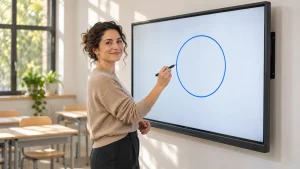
Annotations let the class follow an explanation as it develops. A student can circle evidence in a passage, label a diagram, or draw the next step in a math solution. The teacher can then ask why that choice was made and invite another explanation.
The useful output is the reasoning students can inspect and discuss, not simply a colorful screen. Start with a legible image or short problem and leave space for marks. A crowded slide remains crowded when displayed on a larger board.
SMART's guide illustrates this approach with image annotation, measurement tools, and shared whiteboard activities. The activity can be simple: compare two proposed solutions on the same page and ask students to explain where they differ.
Give students a way to contribute
A shared board can support group problem-solving, sorting, and brainstorming. Students might place ideas into categories, move shapes to represent a fraction, or contribute responses from their own devices when the software supports it.
Participation needs planning. One student writing at the front does not mean the rest of the class is involved. Give classmates a question to answer, a prediction to check, or a reason to challenge. Device-based contributions also require an available device and a working way to join the activity.
In SMART iQ 4, for example, the whole-class activity includes an editing control and a class code for joining. Those controls give the teacher a way to open and pause contributions. They do not determine whether the resulting discussion helps students understand the subject.
Keep useful work for the next lesson
Saved annotations can preserve an explanation that would otherwise be erased. Teachers can revisit the same diagram, compare an earlier answer with a revised one, or share notes for later review. Preparation also becomes reusable when the original file remains editable.
Check what the saving process retains. A screenshot can preserve appearance without preserving movable objects. A PDF can be convenient to read, while the application's original file may be needed to continue editing. SMART's iQ 3 Pro whiteboard instructions, for instance, distinguish a PDF export from a .notebook copy.
Keep learning outcomes separate from features
A board can provide opportunities for interaction without automatically improving achievement. Kyriakou and Higgins' systematic review, based on a literature search conducted in 2013, found no consistent improvement in attainment or lesson quality across the studies it examined. The authors emphasized how the technology was used and the teaching approaches around it.
A separate Quebec survey by Thierry Karsenti, using questionnaires and interviews collected in 2014 and 2015, also found a gap between having an interactive board and giving students opportunities to use it. It could not establish an overall positive or negative effect on achievement.
These historical studies do not measure today's panels. They do provide a reason to judge a lesson by students' explanations and understanding, rather than treating device use as evidence of learning.
Benefits for meetings and workshops
In meetings, an interactive whiteboard is most useful when the group needs to change, organize, or agree on something together. A presentation that requires no participation may gain little from touch controls.
Discuss the same detail
Consider a team reviewing a floor plan. One person circles a doorway, another marks a proposed change, and the group discusses both on the same drawing. Participants can refer to the exact location rather than describe it verbally or switch between separate notes.
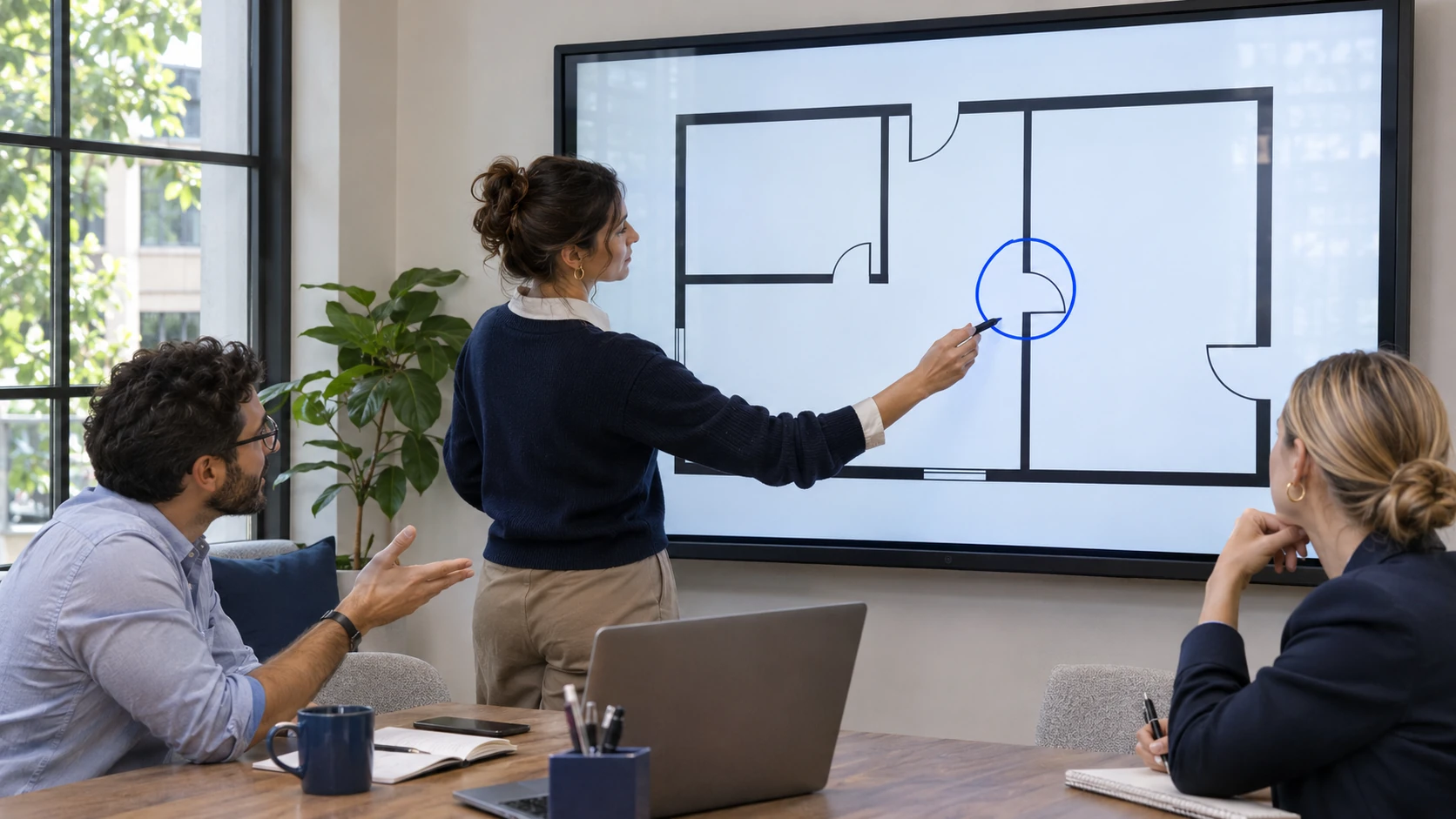
Keep the agreed changes with the plan so the next person can follow the decision. This requires readable content, responsive annotation, and a reliable saving process. An annotation layer that disappears when the app closes would defeat the handoff.
Carry the work between sessions
An existing digital board can hold the starting material for a workshop and the changes made during it. Microsoft's Teams whiteboard sharing instructions describe opening an existing board or creating a new one in a meeting, allowing preparation before the session and continued work later.
Save the outcome in a form the next person can use. A contractor who only needs to read a marked plan may need a PDF or image. A colleague developing the ideas further may need access to the editable board. Record decisions and responsibilities explicitly; a collection of marks is not automatically a usable meeting record.
Include remote contributors in the work
A shared digital canvas can let remote participants contribute rather than only view a room's screen. Microsoft Whiteboard supports shared ink, notes, text, and other objects, as described in its getting-started guide.
Access still needs checking. Microsoft's collaboration guidance distinguishes editing permission from read-only access. An outside participant's ability to join, edit, and return afterward depends on the applicable sharing setup. Test with the actual participant type, not only two accounts belonging to the same organization.
The room also needs a way for remote people to hear and contribute to the conversation. A shared board does not, by itself, solve meeting audio or camera coverage.
Conditions that can limit the benefits
The system has to fit the people using it and the files they already work with. When comparing teaching and conference displays, try the intended activity with the intended users rather than relying on a demonstration of unrelated features.
- Software and files: Open a typical document, annotate it, save it, and reopen it. Confirm which app holds the changes and whether recipients need the same app.
- Access and connectivity: Verify the required sign-in, sharing permissions, and network arrangement. Screen mirroring and shared editing are different tasks.
- Visibility and reach: Check ordinary text from the back of the room. Let the people who will write on the board try its height and controls.
- Preparation and support: Leave time to learn the actual lesson or meeting workflow. Keep a workable alternative for a failed connection or unavailable application.
Savings are not automatic either. Consider software, installation, accessories, support, and staff time alongside hardware. The smart board cost guide separates those budget items so they can be assessed against the tasks the system will actually perform.
When a simpler setup is enough
A regular display can be enough for showing slides, video, or documents without shared editing. A conventional whiteboard can suit quick handwritten discussion when nobody needs a digital original or remote participation. A combination of the two may cover those needs.
Before adopting an interactive workflow, try one ordinary task from beginning to end. Bring your own file, invite another participant, make a change together, then save and reopen the result on the device where it will be used next. Include an external participant if that is part of the real workflow.
If people can explain the content more clearly, contribute meaningfully, or continue the work without reconstructing it, the interactive features have earned their place. If the board is only showing a slideshow, a simpler display may already be doing the job.