A smart board budget needs more than a screen price. Start with the exact display configuration, then add any required computer, mounting, installation, software, training, and support. Compare the total for a usable room—not a bare panel against a fully installed package.
As a published reference point, BenQ’s classroom guide gives a $3,000–$7,500 range, depending on size, brand, and features. This is a manufacturer’s published range from a 2024 guide, checked in September 2026—not a current market average, a quote, or a promise that installation is included. Request dated, itemized pricing for your exact configuration.
First define what “smart board” means in the quote
The phrase can refer to several different systems. SMART Board is also a brand name, while people often use “smart board” generically for interactive displays. Confirm whether you are comparing the same type of equipment.
| System | What it includes | What to clarify |
|---|---|---|
| Interactive flat-panel display | An illuminated screen with touch input; often an onboard operating system. | Whether the apps and external-computer workflow you need are supported. |
| Projector-based interactive whiteboard | A writing surface and an interactive projection arrangement. | Projector, mount, alignment, room lighting, and replacement components. |
| Collaboration board for meetings | A display bundled with some combination of camera, microphones, speakers, and collaboration tools. | Meeting-platform licensing, room accounts, and remote-participant experience. |
A cheaper display without the computer or audio equipment you need may become the more expensive room. Conversely, buying an integrated computer you will never use is not a saving merely because it is bundled.
What changes the hardware price?
Screen size and room fit
A larger screen may help distant viewers, but it also changes weight, handling, wall requirements, and stand selection. Test the smallest meaningful content from the back of the room. Do not buy a larger display solely because the room is described as “large”; a room used for large diagrams has different needs from one used for detailed spreadsheets.
Touch behavior—not just touch-point counts
Compare handwriting, edge accuracy, palm rejection, and the applications people actually use. Infrared and capacitive touch are different approaches, but neither label alone tells you how the complete system will feel. Have typical users annotate, erase, and move objects on the shortlisted model. Check behavior with the actual computer and connection path.
Included computing and connectivity
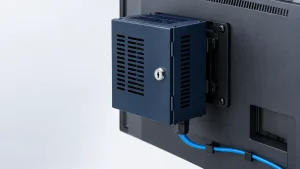
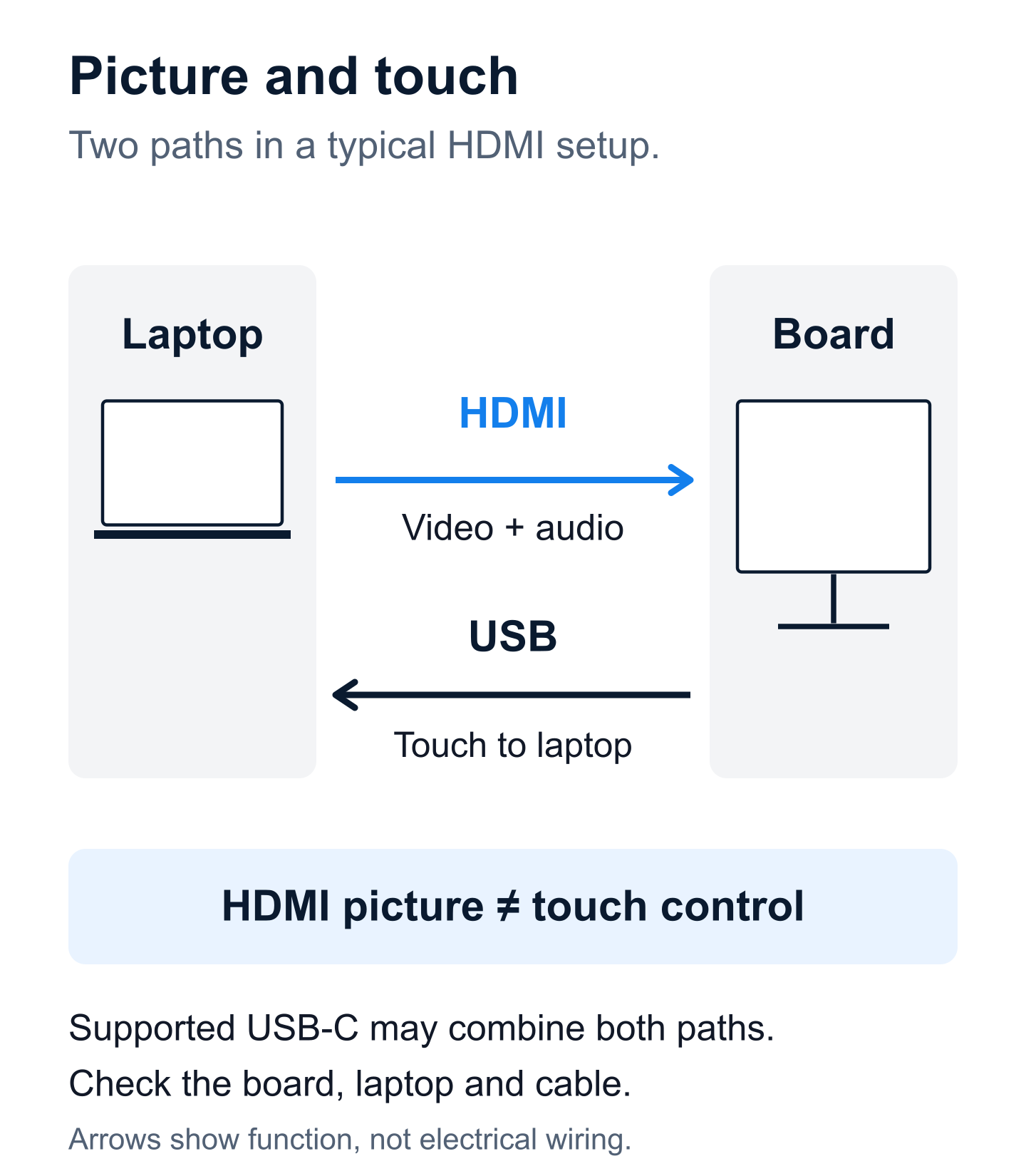
Ask whether the price includes only the panel, an onboard system, a slot-in computer, or an external computer. Test USB-C capabilities rather than assuming every cable carries video, touch data, and charging. An HDMI connection may show an image while a separate supported USB connection is needed for touch return. SMART’s GX connection documentation gives a model-specific example; follow the instructions for the actual board.
Software, administration, and support
Some tools are bundled; others require recurring licenses. For example, BenQ describes included software and management capabilities on its education display page. That does not establish the licensing terms for another brand or every optional service. Get included features, subscription terms, and support duration in writing.
Build a complete room budget
| Budget line | Question that prevents a surprise |
|---|---|
| Display and accessories | Are pens, remote, appropriate cables, and required adapters included? |
| Computer and peripherals | Can existing laptops do the job, or is an additional computer, camera, or microphone necessary? |
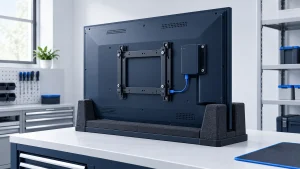
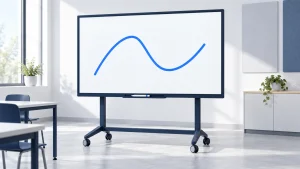
| Mount or mobile stand | Is it rated and approved for the exact display, and can users reach the working area? |
| Delivery and installation | Does the quote cover inside delivery, mounting, disposal, configuration, and testing? |
| Power and network preparation | Are suitable services already in place, or is separate site work required? |
| Software and device management | Which licenses renew, how are they counted, and what happens if they expire? |
| Training and support | Who helps users, who repairs equipment, and what travel or labor is excluded? |
| Taxes and purchasing costs | Which taxes, shipping charges, or procurement fees apply to this purchase? |
For a multi-room rollout, separate shared costs from per-room costs. One training session serving ten rooms should not be counted ten times. Equally, central IT work should not disappear from the budget simply because it is performed internally.
A transparent three-year budget example
The following figures are invented for arithmetic illustration in USD. They are not vendor quotes or typical market prices. The example uses one interactive display, an existing compatible laptop, no new electrical work, and no conferencing camera. Replace every figure with your own scope and quote.
| Item | Assumed amount | Timing |
|---|---|---|
| Display | $3,500 | Once |
| Compatible wall mount | $300 | Once |
| Delivery, mounting, and commissioning | $700 | Once |
| Cables and adapters | $100 | Once |
| Initial staff training allocation | $400 | Once |
| Initial total | $5,000 | Before recurring costs |
| Optional software | $240/year | Three years: $720 |
| Support allocation | $300/year | Three years: $900 |
| Three-year subtotal | $6,620 | $5,000 + $720 + $900 |
Energy, unexpected repairs, building work, taxes, and financing are excluded, not assumed to be free. If the required software is included, remove its line. If the package already includes delivery or support, do not add the same service again. A useful budget is explicit about both inclusions and exclusions.
Run a short task-based pilot before a large purchase
Give a teacher, trainer, or meeting host the proposed equipment and ask them to complete a normal session with their existing files. Avoid letting an expert demonstrator perform every step for them.
- Connect the usual laptop and show a real lesson or meeting document.
- Write, erase, and annotate near both the center and edges.
- Switch between writing and presenting without losing work.
- Export the result to a destination your organization permits.
- Check readability from the farthest important seat.
- Sign out and verify that the next user cannot reopen private content.
- Ask a second user to repeat the process without coaching.
Record failed tasks and the extra equipment or training needed to fix them. This produces a more useful comparison than a long feature list. If most users only show slides, consider whether a non-interactive display plus the equipment already in the room meets the actual need.
Check support beyond the warranty headline
Ask separately about parts, onsite labor, travel, accidental damage, turnaround, and loan equipment. A parts warranty does not necessarily pay for someone to remove a large display and install its replacement.
Also ask how long the operating system and management tools will receive security updates, who controls administrator accounts, and whether an external computer can extend useful life after onboard software becomes unsuitable. Do not assume a working panel is a fully supported system.
For schools and shared workplaces, budget for replacement pens, staff turnover, onboarding, and account cleanup. These are operational responsibilities, even when they do not appear as a subscription charge.
Common smart board cost questions
Are there monthly fees?
Sometimes. Basic whiteboarding may be included while conferencing, content libraries, advanced management, or cloud services are separate. Ask for a feature-by-feature license schedule rather than accepting a general “no fees” statement.
Can I use my existing computer?
Often that is an option, but compatibility must be tested for video, touch, audio, and any required applications. Confirm the computer, operating system, ports, and cables together.
How should I compare two quotes?
Give both suppliers the same room requirements and pilot tasks. Normalize the display, computing, mounting, installation, software period, and support scope. The better-value offer is the one that meets those needs at a clear total cost—not necessarily the lowest advertised panel price.