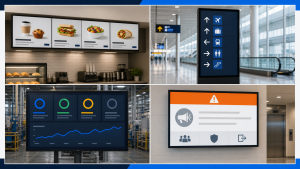
Digital signage security means controlling who can change the screen, what data reaches it, and what happens when something fails. Protect publisher accounts, devices, networks, content, and physical access together. A secure CMS does not automatically make a publicly visible screen—or a publicly shared dashboard—safe.
Start with three practical questions: Who can publish? Who can see the information? Who can restore an approved display when the normal process breaks? Each needs a named owner and a testable answer.
Map the real system before choosing controls
List the CMS, identity provider, players or built-in display platforms, network connections, content integrations, and support routes. Include contractors and temporary accounts. Record what each component can access and who maintains it.
HKCERT’s signage guideline separates application, management, network, and device layers. That is a useful technical model: a control at one layer should not be mistaken for protection of the whole chain. Its guidance is a technical reference, not a statement of US legal compliance.
| Responsibility | Suggested owner | A useful check |
|---|---|---|
| Publisher permissions | CMS administrator | A location editor cannot publish to an unrelated location. |
| Content approval | Communications owner | A draft does not become public without the agreed approval. |
| Player configuration | Endpoint administrator | A documented baseline can be restored to a test player. |
| Connectivity | Network team | Approved services work without unnecessary access to other systems. |
| Data exposure | Data owner | Only information appropriate for the screen’s audience is visible. |
| Physical access | Site owner | Public users cannot casually reach service controls or removable media. |
| Incident recovery | Named response lead | The team can stop unwanted content and restore an approved state. |
For a small site, one person may hold several roles. Write the responsibilities down anyway. Shared assumptions are not a recovery plan.
Protect publisher accounts and limit their reach
Use individual accounts, appropriate multi-factor authentication, and the least access needed for each role. NIST explains MFA as an additional authentication layer; it is particularly important where a stolen account could change many screens. Protect account recovery and privileged access as well as normal sign-in.
Separate everyday editing from account administration. Where the platform supports it, require review before content reaches sensitive or widely distributed screen groups. Give a contractor access only to the locations and period needed for the job.
Test the restrictions with an authorized test account. A role name such as “editor” is not enough: verify which screens it can reach, whether it can change schedules, and whether it can invite additional users. Review accounts when people change roles or leave, and retain appropriate publishing and administrative logs.
Do not make a private dashboard public just to display it
A difficult-to-guess link is not the same as authentication. In Power BI, Microsoft explicitly warns that Publish to web makes reports available to anyone on the internet without authentication, including access to underlying data that may not be visible in the report. Do not use this route for confidential or proprietary information.
Work with the data owner and IT to select a supported authenticated integration with the right permissions and licensing. Confirm where rendering occurs, where credentials or tokens are held, and what information is cached. Test token expiry and sign-out behavior; a screenshot of a successful login does not prove the ongoing integration is appropriate.
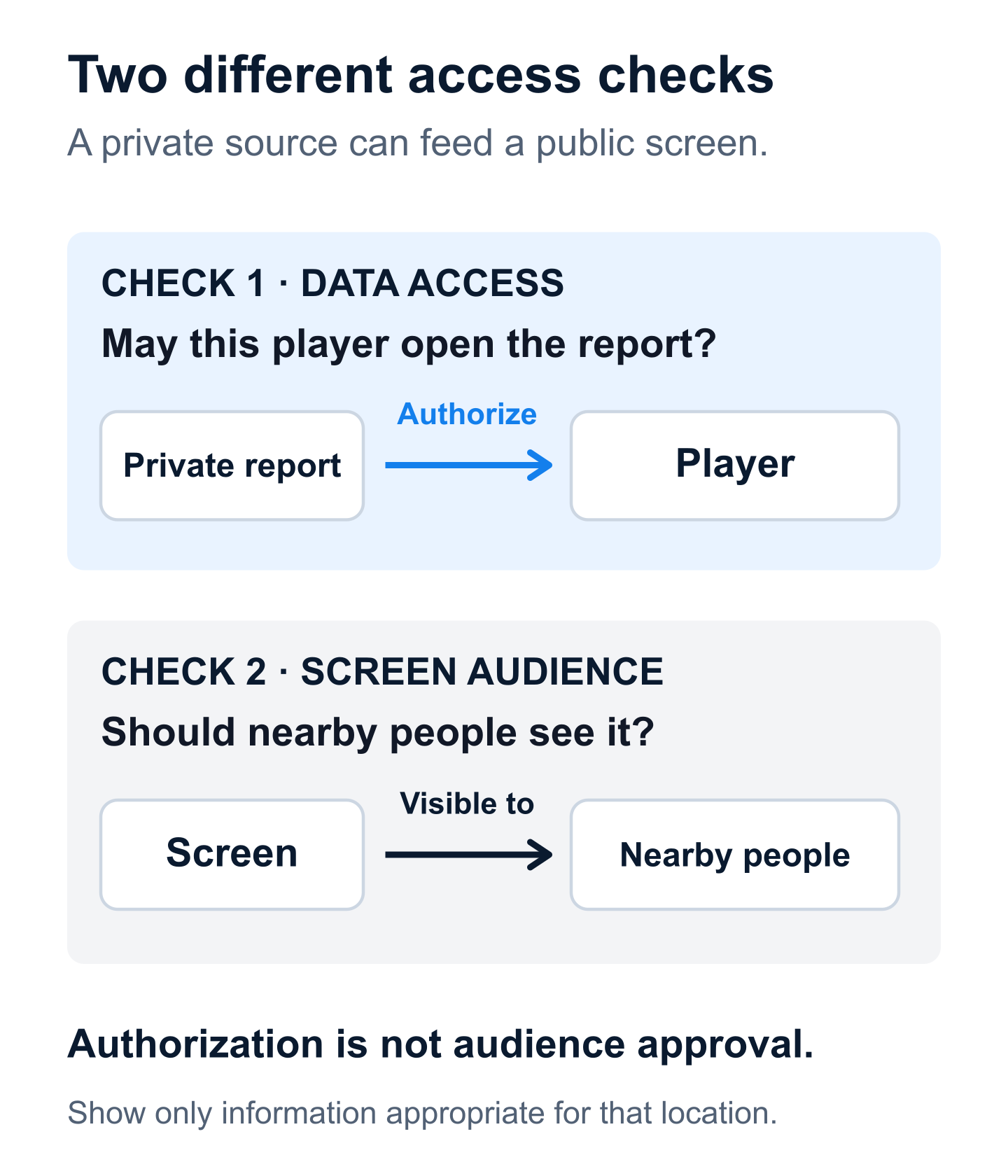
There are two separate exposures: someone accessing the source remotely, and someone physically reading the screen. Even a correctly authenticated dashboard can reveal private information to visitors, contractors, or people looking through a window. Publish a purpose-built, limited view when the full dashboard contains more information than the audience should see.
Harden players and approve their network access
Replace default credentials, remove unnecessary services, and use a supported device configuration. Keep an inventory of operating-system and signage-app versions, support dates, and the person responsible for updates. Retire or replace components that no longer have a suitable support path.
Harvard’s signage guidance recommends network separation, software updates, controlled access, and monitoring. Apply those ideas to your own environment with IT: a separate network needs appropriate access rules, not merely a different name.
Ask the provider for documented connectivity requirements. Permit only the necessary routes for playback, management, time, and other approved dependencies. Avoid exposing a player’s management interface directly to the public internet for convenience. Remote support should use the organization’s approved access method and leave an auditable record.
Test updates on representative equipment before a wide rollout, and retain a documented recovery path. Security changes should not silently break the screen’s schedule, supported content, or safe fallback. Conversely, a temporary workaround introduced during installation should not become an undocumented permanent exception.
Protect content integrity and define a safe failure state
Security also includes avoiding the wrong message at the wrong time. Give important content an owner, approval state, intended locations, and an expiry or review date. Limit external feeds to approved sources. Check that a compromised or unavailable integration cannot replace the entire screen with arbitrary content.
Design fallback behavior by content type. A static welcome image can remain useful offline; a transport status, operational dashboard, or time-sensitive notice can become misleading when stale. Show a neutral approved message or clearly indicate unavailable information when the data can no longer be trusted.
| Situation | Decision to make | What to verify |
|---|---|---|
| Network lost | Which cached items remain appropriate? | No private desktop, login prompt, or expired critical information appears. |
| Dashboard authorization expires | What approved neutral content replaces it? | Tokens or diagnostic details are not exposed on screen. |
| Scheduled message expires | Which valid item takes its place? | The old message does not remain indefinitely. |
| Unexpected publication | Who can stop it across affected screens? | The response works for the relevant screen groups and is logged. |
These are proposed acceptance checks, not claims that every CMS implements the same behavior. Verify the chosen platform. Do not assume ordinary signage is a certified life-safety alerting system or the sole reliable channel for urgent messages.
Protect physical access without creating new problems
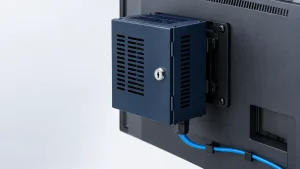
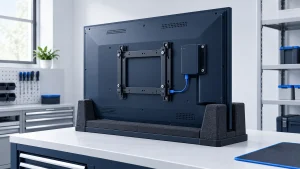
Consider the display, player, accessible USB or other ports, removable storage, remote controls, and network connections. Use suitable access controls or enclosures where needed, while preserving ventilation, service access, and manufacturer requirements.
A locked enclosure addresses only part of the problem. It does not fix an overprivileged CMS account or a public report link. Equally, a well-secured cloud platform does not prevent someone from changing an accessible display input with a remote.
Decide who holds keys, how a technician obtains access, and how equipment is securely decommissioned. When replacing a player, remove stored accounts and organization data through the approved process before it leaves your control.
Prepare a short incident response procedure
If unwanted content appears, use your organization’s incident process. A practical signage-specific checklist is:
- Contain the visible harm. The authorized operator stops the affected publication or invokes the approved local fallback.
- Notify the response lead. Record affected locations, times, and what was observed.
- Preserve relevant evidence. Keep available logs and configuration details without distributing sensitive screenshots broadly.
- Investigate the access path. Determine whether the issue involved an account, integration, device, physical access, or an ordinary publishing mistake.
- Restore an approved state. Revoke affected access and recover through the authorized technical process; avoid wiping evidence prematurely.
- Validate and improve. Confirm both screen content and underlying access controls before closing the incident.
Exercise this procedure on a test system with non-sensitive data. Record who can act outside normal business hours and what to do when remote access is unavailable. A plan that depends on the only administrator being online is fragile.
Common digital signage security questions
Is HTTPS enough?
No. Transport encryption does not decide who may publish, whether the shared source is public, or who can read the physical screen.
Is cloud or on-premises signage more secure?
Either can be well or poorly managed. Compare responsibilities, supported controls, update practices, access, monitoring, and recovery in the actual deployment rather than treating hosting location as a guarantee.
Does a vendor certificate mean our installation is compliant?
No. Ask what service and scope were assessed, then review your own accounts, devices, data, and processes. Organizational and legal requirements may need a separate qualified assessment.