A smart board is a large interactive surface that shows digital content and lets you work with it by touch or with a compatible pen. In a classroom, you might move an object on a slide. In a meeting, you might mark up a floor plan. SMART Board, with SMART in capitals, is a product name from SMART Technologies. In everyday speech, people also call interactive boards from other makers smart boards.
That name alone won't tell you how to run the room. Two displays for teaching and meetings may let you write on the wall, but one can rely on a projector and computer while the other has its own screen and may run apps on the panel. Even when your laptop's picture appears, touch control and saving notes are separate things to check.
Key Takeaways
- SMART Board is a brand name. In everyday use, a smart board can be a projector-based board or an interactive flat panel.
- A projector-based board receives its picture from a projector. A flat panel contains its own screen, but whether it runs apps on its own depends on the model.
- When a computer supplies the picture, check that touch can reach it. Before you present, make a sample mark and confirm you can save the kind of file you need.
What people mean by “smart board”
SMART Board names a product family, not a type of connection. The SMART M600/M600V user guide identifies SMART Board as a trademark and documents two series of projector-based whiteboards. SMART's education product range also uses the name for interactive flat panels. A SMART Board can be either design.
“Interactive whiteboard” can be just as ambiguous. The University of Maryland's classroom guide uses it for a touch-sensitive board paired with a computer and projector. Someone in a meeting might use “whiteboard” to mean the app that opens a blank canvas on the panel. If you're asking for help with a room, say “projector-based board,” “interactive flat panel,” or “whiteboard app,” and give the model name if you know it. That tells the person helping you whether to look at the hardware or the software.
Projector-based boards versus interactive flat panels
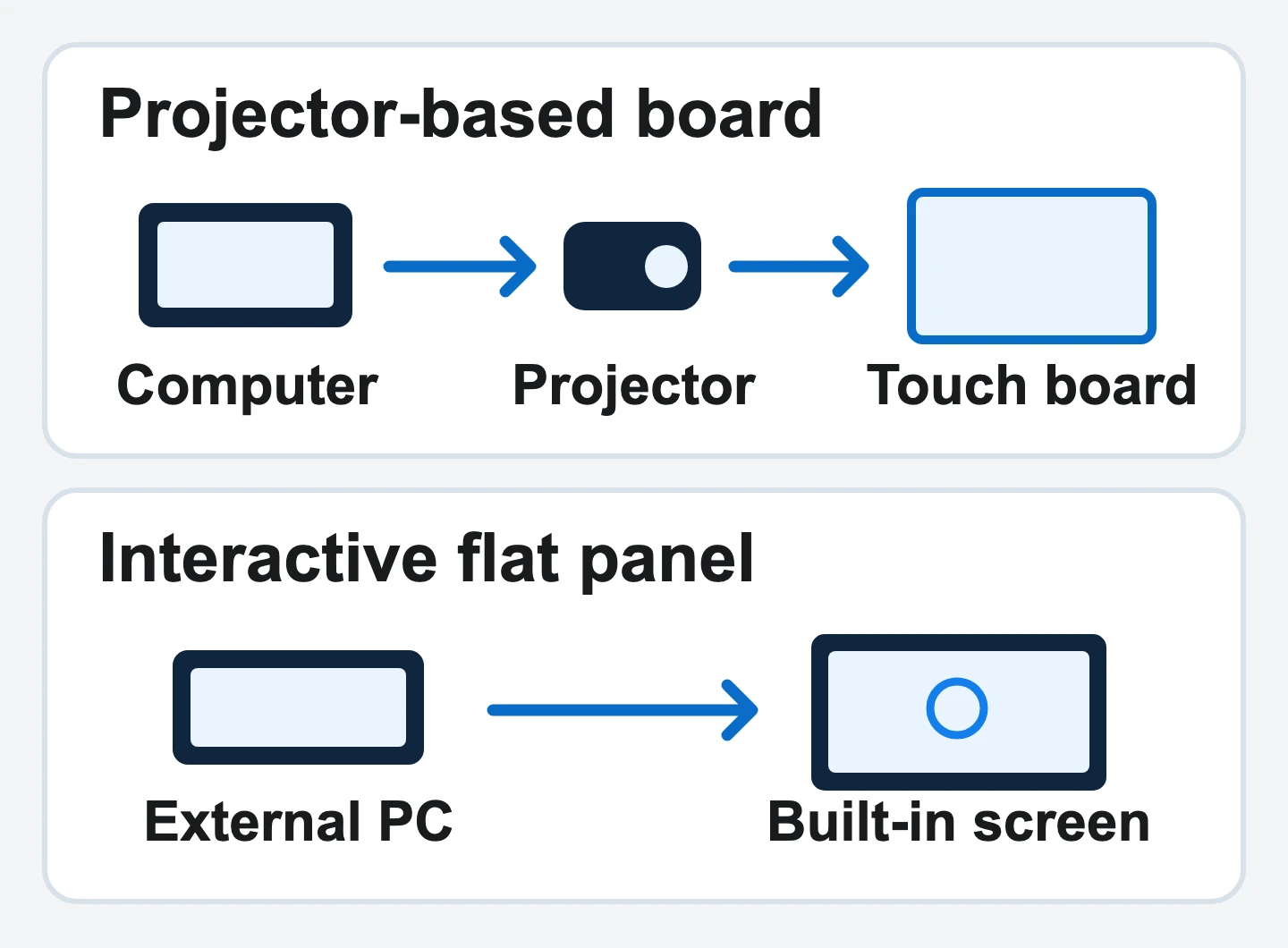
The visible difference is where the picture comes from. A projector-based board needs a projector to put the image on its surface. An interactive flat panel shows the image on its built-in screen.
Projector-based board
On the discontinued SMART M600/M600V series, the computer runs the app and sends the image to the projector. The projector casts that image onto the board. When you touch the board, it detects where you touched and sends that information back to the computer over USB, as documented in the user guide. You are operating the computer from the board, not running an app on the board itself.
The two paths can behave differently. A projected slide can look fine even when a disconnected USB cable keeps taps from reaching the computer. If the pointer responds but lands away from your finger, check the alignment instead. The M600/M600V guide explains how to orient that board when the projector or board has moved.
Interactive flat panel
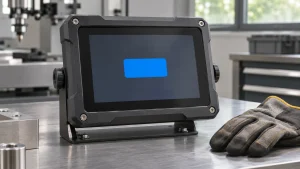
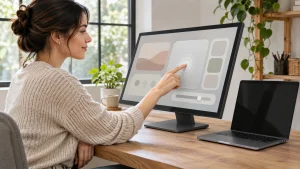
An interactive flat panel is a large touchscreen display that shows the image directly on the surface you touch. You can skip the projector, but you may still need a computer. The Promethean ActivPanel LE, for example, has an onboard operating system and a built-in whiteboard app. SMART's GX Zero is described as OS-free and still offers inking. A panel with a screen and a pen does not necessarily run the apps you want to use.
When you connect a laptop, the panel needs a way to send touches back if you want to control that laptop from the screen. Promethean's interactive display catalog lists HDMI inputs and separate USB-B ports marked for touch. By contrast, BenQ's Board Pro RP04 documents a USB-C connection that can carry the picture and send touch input back. Look up which connection your model supports. A visible HDMI or cast image, or the presence of a USB-C port, doesn't prove that touch can reach the computer.
How touch, pen input, and software work together
The touch surface detects a contact. The software decides what that contact does. A finger tap might advance a slide in one app and select a shape in another. A stroke becomes digital ink when the active tool treats it as writing. Being able to move the pointer doesn't tell you whether the app can draw a mark, let alone save it.
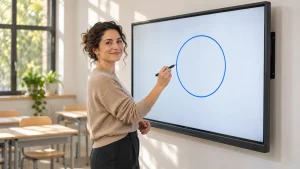
Picture a teacher circling a sentence on a slide from a laptop. The mark might be in the slide editor, or it might sit in a separate layer over the picture. On the M600/M600V setup, for example, the manual describes SMART Ink as a tool installed on the connected computer and explains that SMART Notebook has its own ink tools. A mark visible on the wall doesn't tell you whether the original slide has changed.
Think about what you need after the session. A team may want a copy of an annotated floor plan to circulate, or an editable whiteboard to pick up where it left off. On the BenQ RP04 example, EZWrite can save an editable whiteboard file or export the session as a PDF handout. Those are different outputs. The app you're using, rather than the pen or screen, determines which one you can make.
Identify the system you have before connecting it
Before a class or meeting, test a sample page with the device, input, and app you'll actually use:
- Where is the picture coming from? If a projector puts the image on the wall, identify the computer feeding it. On a flat panel, check whether you've selected a laptop input or opened an app on the panel itself.
- Does touch reach the device running the app? With your laptop as the source, try a tap or drag in one of its apps. If the picture is fine but the laptop doesn't respond, check the panel's manual for the touch connection that goes with the selected video input. Touch working in the panel's own menu doesn't prove it reaches the laptop.
- Can you keep the mark you made? Draw on a disposable sample, then use the app's save or export command. Reopen the result before the session. If someone needs to move your marks later, check for an editable file rather than assuming that a capture will do.
If you're budgeting for a new room rather than connecting one you already have, the smart board cost guide covers that decision separately.