Digital signage is a system that uses electronic displays to show content that can be changed over time. The content may be images, text, video, live data, menus, directions, alerts, or interactive pages. At minimum, the system needs content, something that plays it, and a screen. Networked systems add software and connectivity so people can update one or many screens remotely.
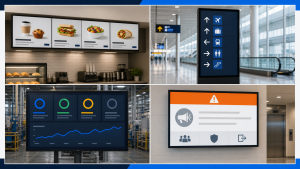
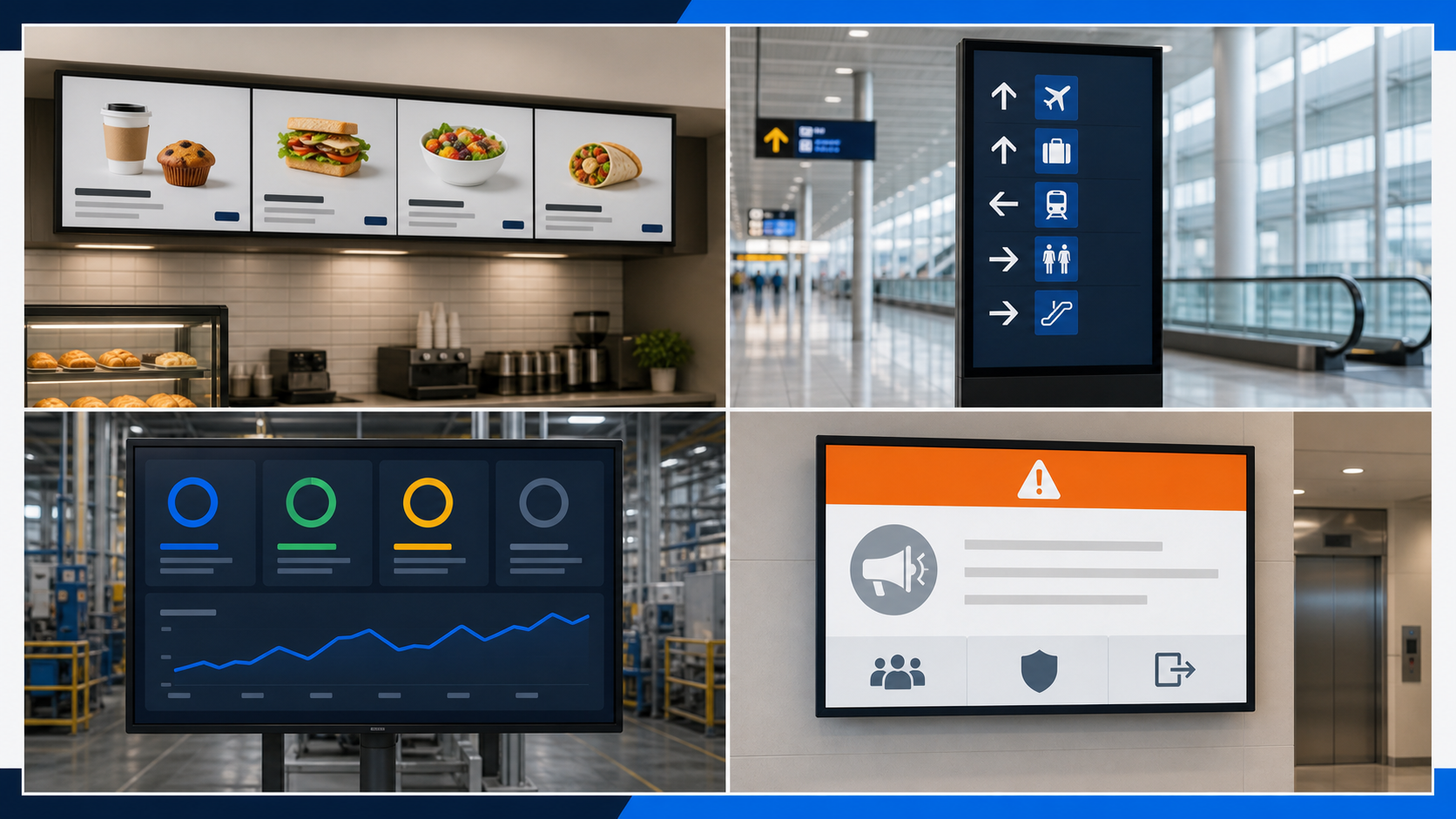
You already see digital signage in menu boards, airport gates, hospital wayfinding, retail windows, factory dashboards, office lobbies, school announcements, self-service kiosks, and stadium video walls. What makes them one category is not their shape. It is the managed flow of digital content into a physical place.
What are you actually looking at?
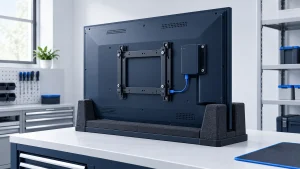
A screen showing a digital menu may look like a television. Behind it may be a small player connected by HDMI, an embedded computer inside the display, a network connection, a cloud content management system (CMS), and a person responsible for approving updates.
That distinction prevents the most common misunderstanding:
- A display is the visual device.
- Digital signage is the display plus the content-delivery and operating system around it.
A single screen playing a loop from a USB drive can be digital signage. So can a centrally managed network of thousands of screens. The second system is more complex, but complexity is not part of the basic definition.
How digital signage works in six steps
- Create or collect content. A team prepares images, video, text, dashboards, feeds, or interactive pages.
- Approve and schedule it. Someone decides what can play, on which screens, at what time, and for how long.
- Publish it. A CMS sends instructions and media to the selected player or embedded system. A standalone setup may instead use USB or local storage.
- Download and cache it. Many players keep a local copy so scheduled content can continue during a temporary network interruption.
- Render it on the display. The player outputs the layout, while the display turns that signal into visible images.
- Monitor and maintain it. Staff check whether the device is online, the correct content is playing, and expired or inaccurate material has been removed.
The network is useful but not always mandatory. Wikipedia’s current overview distinguishes networked systems, which can receive central updates, from standalone systems that play local files from USB, SD card, or internal storage. The practical choice depends on how often content changes and how difficult each screen is to visit.
The components—and the job each one performs
Display
The display makes the message visible. It might be an LCD flat panel, direct-view LED wall, projector, touchscreen, kiosk display, or another digital surface. Choose it for the viewing distance, ambient light, operating hours, orientation, environment, and required interaction—not only diagonal size.
Media player or embedded system
The player receives, stores, and renders content. It may be a small external box, a computer, a software application, or a system-on-chip (SoC) built into the display. A player often caches files locally and then sends a video signal to the display. Compatibility depends on the operating system, storage, codecs, web engine, security updates, and CMS.
Content management system
The CMS is where authorized users upload or create content, organize screens, build playlists or layouts, schedule playback, and sometimes monitor devices. It may be cloud-hosted or installed on premises. AVIXA describes a typical signage system as displays, media players, and software, with the CMS providing centralized creation, scheduling, updating, and monitoring.
Content
Content is what the audience actually receives: a price, direction, safety message, queue number, promotion, schedule, dashboard, or interactive task. Beautiful hardware cannot rescue content that is unreadable, stale, irrelevant, or on screen for too little time.
Mounting, power, and connectivity
Mounts, enclosures, power, cabling, network access, and service clearance turn components into a safe, maintainable installation. CDW’s system overview usefully includes these less-visible items rather than treating the display as the whole solution.
People and operating rules
Someone owns the message, approves changes, manages access, supports hardware, and removes expired content. Mvix calls out a “digital signage champion”; the label is optional, but the responsibility is not. An unowned screen eventually becomes an outdated screen.
Three levels of digital signage
| Level | How it works | Good fit | Trade-off |
|---|---|---|---|
| Standalone | Files play from USB, SD card, or local storage. | One screen; content changes rarely; limited connectivity. | Someone must visit the screen to update and verify it. |
| Connected single screen or small group | A player or smart display connects to a CMS for remote updates. | Content changes often; screens are accessible online; a small team manages them. | Adds software, accounts, security, and device-support work. |
| Multi-site managed network | Central teams group screens, schedule by location, integrate data, monitor status, and govern access. | Many screens or locations; consistent messaging; operational or live data. | Requires architecture, permissions, support, governance, and lifecycle planning. |
Start with the least complex level that solves the communication problem. A cloud CMS is valuable when remote updates, scheduling, or scale matter. It is unnecessary overhead if one stable message changes twice a year and the screen is easy to reach.
Five jobs digital signage performs
Inform
Share announcements, schedules, prices, wait times, performance metrics, or news. Examples include lobby boards, factory dashboards, and passenger information.
Guide
Help people find a room, gate, department, product, or next step. Wayfinding may be a simple directory or an interactive route finder.
Transact
Support ordering, check-in, ticketing, payment, or self-service. In this case the “sign” is part of an application and may include touch, a scanner, printer, payment device, or accessibility features.
Coordinate
Align employees, visitors, or operations with current information: meeting-room availability, production targets, safety status, queue flow, or event schedules.
Alert
Override ordinary content with urgent instructions. An emergency use case needs clear authority, tested integrations, fallback behavior, and accessible message design; it should not be added as a casual marketing feature.
What digital signage is not
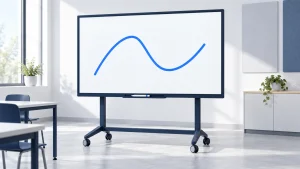
- It is not automatically a TV. A TV can be used as one component, but commercial displays may better match long hours, portrait use, bright spaces, remote control, or commercial warranty.
- It is not the same as digital out-of-home advertising. DOOH is an advertising use of digital displays in public places; digital signage also includes internal communication, information, wayfinding, operations, and self-service.
- It is not always interactive. Touch, sensors, QR codes, and mobile interaction are optional.
- It is not always cloud-based. Standalone and on-premises systems exist.
- It is not effective merely because it moves. The message still needs to be readable, timely, relevant, and maintained.
A practical starter checklist
- Audience: Who should notice or act?
- Task: What question or action should the screen resolve?
- Location: Where will people see it, from what distance and angle, for how long?
- Environment: Indoor, window-facing, outdoor, hot, dusty, public, or supervised?
- Content: What formats and data sources are required?
- Update frequency: Hourly, daily, weekly, or rarely?
- Scale: How many screens and locations now—and later?
- Ownership: Who creates, approves, publishes, supports, and audits content?
- Failure plan: What happens after a power, network, player, or display failure?
- Success check: What observable outcome would show the screen is useful?
Operations, security, and privacy
A networked screen is an endpoint in a physical space. Use named accounts, least-privilege access, supported software, secure network configuration, and an update process. Decide who can issue emergency overrides and who reviews expired content.
Interactive or analytics systems may collect inputs from touchscreens, cameras, sensors, or mobile devices. Use only the data needed for the task, communicate collection appropriately, limit retention and access, and review applicable privacy, accessibility, and sector requirements with qualified specialists. A generic blog cannot determine the legal obligations for a specific location.
Frequently asked questions
Can I use a regular TV for digital signage?
Yes, especially for a low-risk indoor pilot with limited daily use. Add a compatible player or app and verify startup, offline behavior, orientation, visibility, remote management, and warranty. Long-hour, portrait, bright, public, or critical installations may justify a commercial display.
Does digital signage need the internet?
No. A standalone screen can play local files. Internet or private-network connectivity becomes useful for remote publishing, live data, monitoring, integrations, and multi-site control.
What is a digital signage player?
It is the hardware or embedded software that receives, stores, and renders content for the display. It can be a separate box, a computer, an app, or a system built into the screen.
Can I build digital signage myself?
A simple indoor system can be assembled from a screen, compatible player, CMS or local files, and safe mounting. Professional help is appropriate for electrical work, heavy or high mounting, outdoor use, structural work, public safety, accessibility, complex networks, or critical operations.
How much does digital signage cost?
Cost depends on display type, environment, screen count, installation, software, content, and support. A useful estimate defines those items and calculates a multi-year total rather than quoting only the screen.